
Contractor before and after photos
Before and after photos that sell the job you already did
Day-one conditions and the walkthrough at punch belong in the same album — not two camera rolls six weeks apart. Share contractor before and after photos in one link from your page, then attach that story to the estimate for the next room or the invoice for this one.
Get the app


How it works
Photos by job, a client link, an invoice with proof — then new jobs nearby
- 01
Photos by job
Every shot lands in the album for that address.
- 02
Share with the client
One live link. They open it in any browser.
- 03
Invoice with proof
Put the same photos on estimates and invoices.
- 04
Get found for new jobs
Your Page, Local Pages, and marketplace — with the photos you already take.
By job
One album per address
Live link
Client opens in the browser
Proof on the invoice
Estimates & invoices
Starter free
Your page and CRM to start
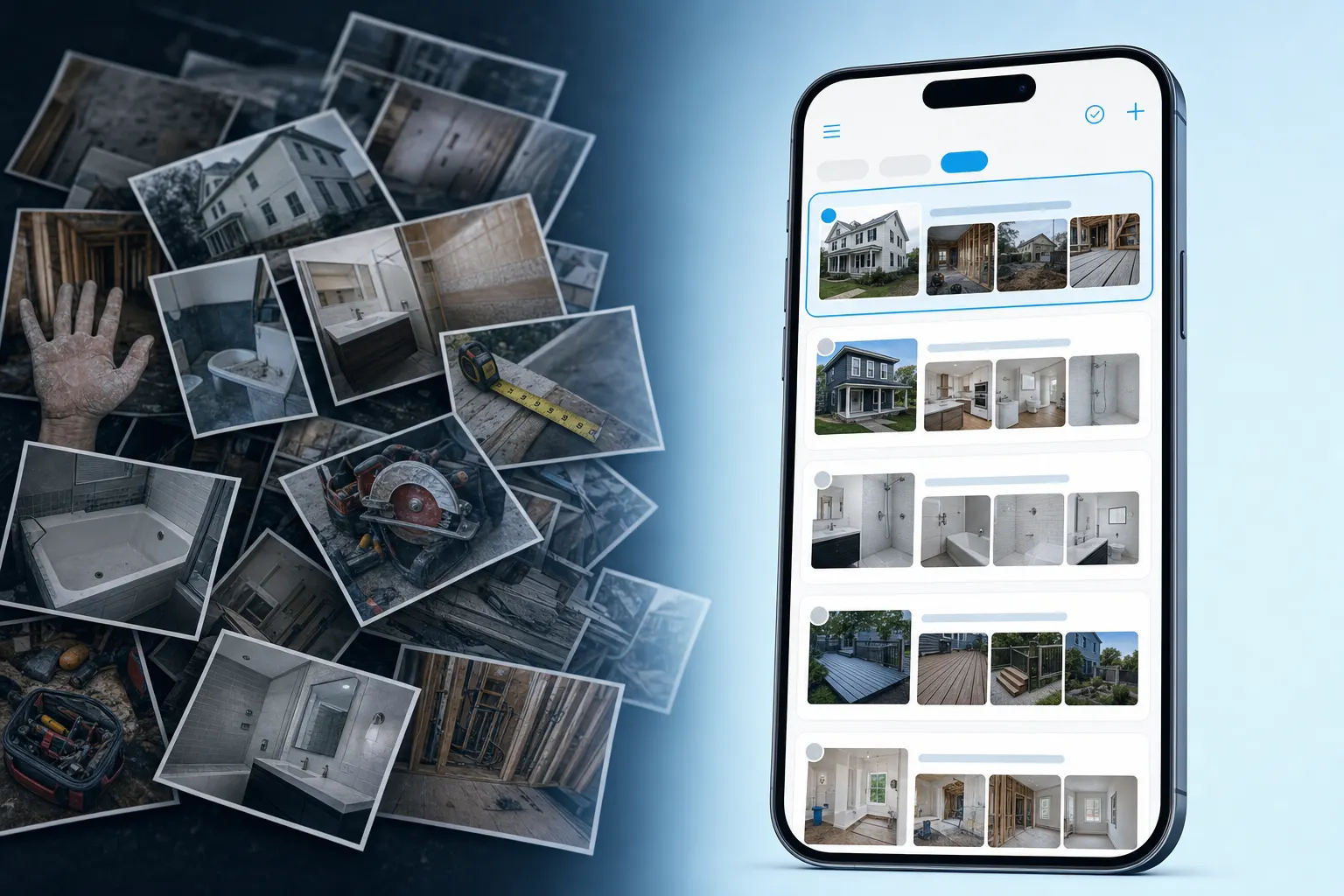
The problem
Before and after shots die in the camera roll
The money shot is useless if the before is on a helper’s phone. Contractor before and after photos need one album by address, a link the client will open, and a path onto the estimate or invoice.
Scattered job photos versus albums organized by projectHow photos move
Day-one capture to a close-out clients can scroll
Shoot existing conditions, file both ends by address, share one link, then attach the transformation when you quote or invoice.
01
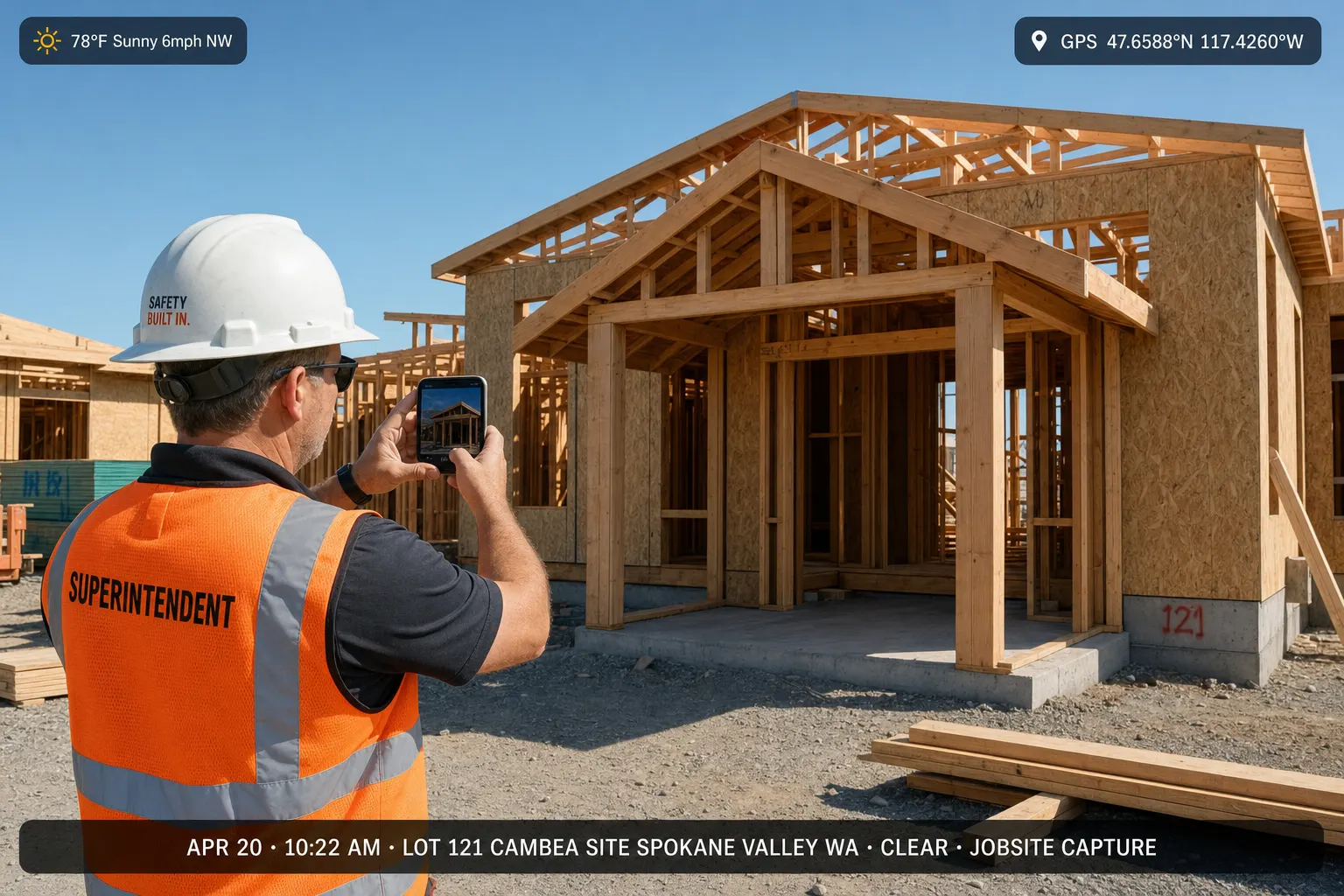
Capture on site
Take progress shots, before-and-afters, and walkthroughs on iPhone or Android. Your crew already has a camera in their pocket.
Technician taking jobsite photos on a phone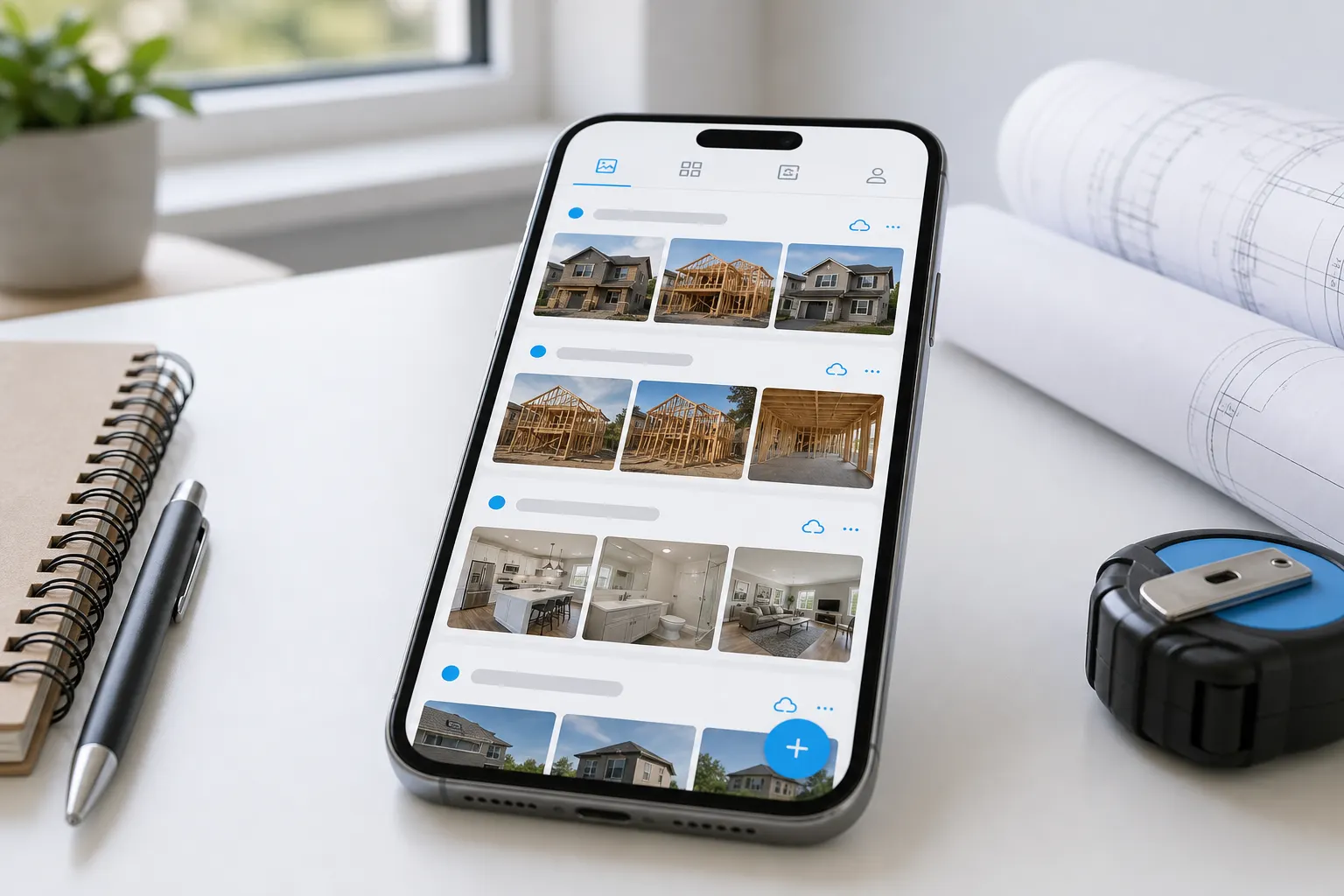
02
Organize by project
Pin the job address so every photo lands in the right album. When someone asks for proof later, you can find it.
Project photo album organized by job address on a phoneTake the picture on site. It stays with that job. Send the client one link. Put the same pictures on the invoice.
- Take photos
- Keep with the job
- Send a link
- Invoice with pictures

03
Share with clients
Send one link from your page. Homeowners and property managers scroll the photos in any browser — they don’t need the app.
Client viewing job photos from a share link in the browser
04
Attach to estimates & invoices
Estimates, work orders, and invoices live with the photos. Send the paperwork with proof already on it.
Estimate and invoice next to a jobsite photo album
05
Crew photo sharing on site
Invite supers, subs, and techs to upload. Everyone feeds the same album, so nobody is hunting through texts.
Crew uploading job photos to a shared album from the field
06
Before and after service photos
Remodelers, HVAC techs, landscapers, and plumbers close faster when the client can see the before and after — then you send the estimate while it’s still fresh.
Before and after photos in a client-facing job albumWhat you get
Shoot the before. File the after. Share the pair.
Capture on site
On iPhone or Android — progress, before-and-afters, and walkthroughs from any job or service call.
Organize by job
Pin the address so every photo lands in the right album. Easy to find later.
Share with clients
Send one link from your page. Clients scroll in any browser — they don’t need the app.
Attach to estimates & invoices
Photos and CRM in one place. Send paperwork with the pictures that prove the work.
Sound familiar?
Four ways before/after sets fall apart
Mixed camera roll
Photos from four visits sit in one camera roll — hard to find the right shots when a client calls.
Album per project
Keep photos by job address so every shot stays with that project.
Crew out of sync
Techs text photos to dispatch, dispatch texts the office, and nobody has the full set when it’s time to share with the client.
Crew on one album
Everyone uploads to the same album — field and office see the same photos.
Messy handoffs
Twenty compressed texts or a Drive permission maze doesn’t look like a finished job.
One client link
Share a clean gallery from your page. Keep adding photos without resending a new link.
Photos in one place, invoices in another
You prove the work in photos, then switch apps to quote, schedule, or invoice.
Page + CRM
Put before-and-after photos on estimates and invoices — same page, same brand.
Contractor before and after photos that match how clients decide
People buy the difference. If the “before” is buried in a tech’s phone and the “after” is a compressed WhatsApp still, the story dies. One album by address keeps both ends together so the scroll does the selling.
Painters, remodels, HVAC swaps, yards — same habit
Any trade that leaves a visible change needs a before. Capture it on the first visit, keep adding during the job, and share the close-out without building a separate marketing folder.
From the after shot to the invoice
Show the transformation, then bill from the same page. Attach stills or a live FWDLink so the invoice is not a number with no picture. Starter is free to start — see Plans for storage, seats, and online payment fees.
For trades and field service
Before and after photos for every visible trade
Remodeling & GC
Keep each phase in one album — before, during, and after — so the client can follow the job.
HVAC, plumbing, electrical & garage door
Rough-in, repair, install, and callback photos stay with the address, ready when you need them.
Landscaping & cleaning
Before and after for every visit — arrival, work in progress, and sign-off.
Roofing & exteriors
From tear-off to close-out, photos for adjusters, GCs, and homeowners.
Ready for the next job?
Your page
fwdlink.com/you — before/after albums on your page
Your page is where the transformation lives next to the invoice. One link for this job; same brand when you ask for the next one.
fwdlink.com/you
Day one lives here
Shoot existing conditions before demo. That baseline is the “before” you will need for the client, the insurer, and the next quote.
After shots in the same album
Close-out frames land next to day one — clients scroll the transformation instead of guessing which text was the finish.
Attach the story
Put before and after stills, a walkthrough clip, or a live FWDLink on the estimate or invoice while the result is still on their mind.
Contractor before and after photos — FAQ
- How do contractors share before and after photos with clients?
- Keep day-one and close-out in one album by address and send a read-only link from your page. Clients scroll the pair in a browser — you keep adding if punch items change.
- When should I shoot the before?
- On the first visit, before demo or install. Matching angles later is what makes contractor before and after photos convincing.
- Can I use the same album for marketing and for the client?
- Yes if the client agreed. Share a link for this job, then reuse selected stills on your page. Keep private jobs off public view.
- Can my painter or helper upload the after shots?
- Invite them with upload access to that album. You still send the client link and the invoice.
- Can I attach before and after photos to an estimate?
- Yes. Attach stills, a short walkthrough, or a live FWDLink so the next quote shows what you already did next door — or so this invoice matches the finish.
- Do clients need to install anything to see the before and after?
- No. They open the link in any browser. Same link if you add punch photos later.
Start the next before-and-after album on FWDLink
Claim a free page, shoot day one on the next job, and keep the after in the same album. Starter is free — see Plans for storage, seats, and online payment fees.
Get the app
Related