FWDLink
FWDLink for smart glasses
You captured it hands-free. Send the album — not Recents.
Ray-Ban Meta, Snap, and the phone already drop the shot into Recents. Open FWDLink and give the keepers a home — a job, a listing, a trip, a client. Then FWD a live link, put a set on your page, or attach the same walkthrough to an invoice. The glasses got the moment. FWDLink is the album you’re glad to send.
Ray-Ban Meta, Snap, GoPro & phone · Private until you FWD
The problem
The moment you captured should not vanish in Recents
The Meta app fills up. Snap Memories fills up. Then everything lands in Recents — this morning’s walkthrough under lunch and last week’s job. A client, a buyer, a grandparent asks for the set. You scroll. You send a compressed thread you’ll have to resend. That footage deserved an album.
The fix
Give the keepers a home. Then FWD only that set.
Get the shot onto the phone the way you already do. Open FWDLink and add it to the album or record it belongs in. Organize in your private library. Then FWD a live link — or put keepers on your public page. Glasses, action cams, and the phone all live in the same workspace. Relief is sending the walkthrough, not Recents.
From Recents into a real album
Every camera. One album you’re proud to send.
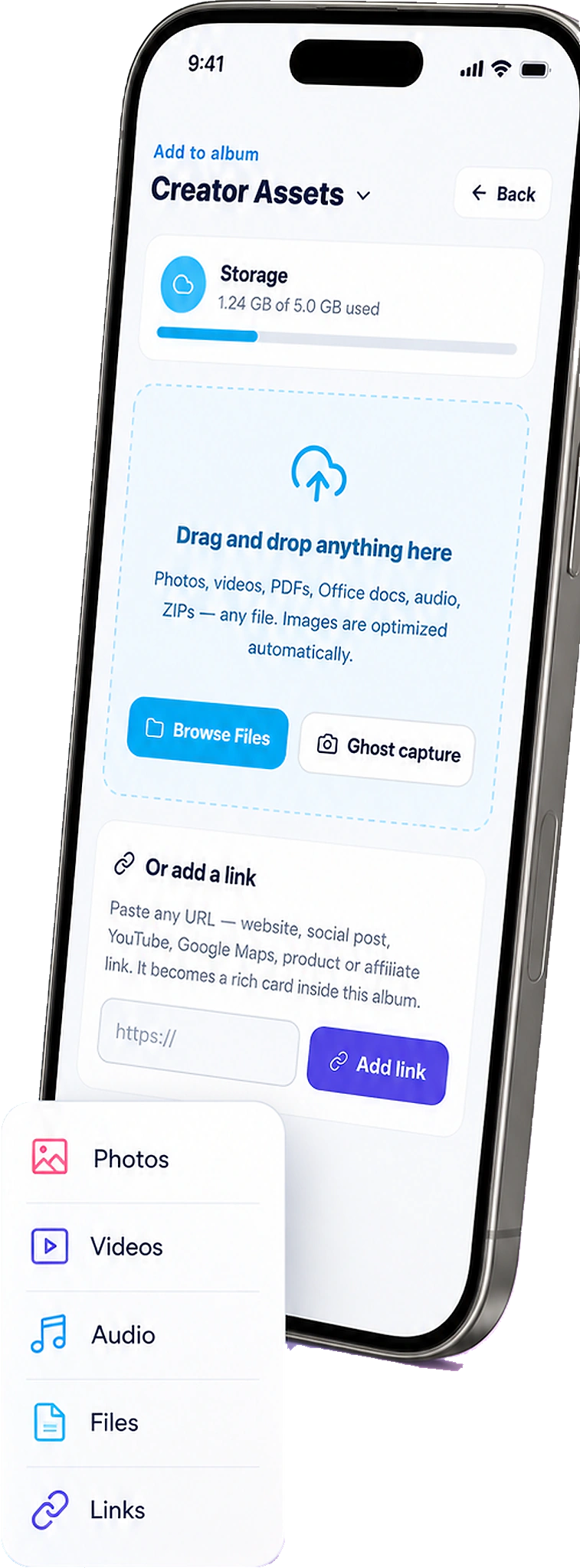
Get the shot onto the phone the way you already do. Open the job, listing, trip, or family album in FWDLink and upload from the camera roll. Then you decide who gets the link — and they get the set, not the pile.



How it works
From the glasses to a link they’re glad to open
You already know how to take the photo. FWDLink is where the footage lives — the album you’re proud to send, one live link, not a Recents dump.

01
Capture anywhere
Walk the job, the listing, the trail, or the shoot. Ray-Ban Meta, Snap, GoPro, Spectacles, or the phone in your pocket — the camera that’s with you is the one that caught it.
02
Get it on the phone, upload to FWDLink
The glasses app puts the media in Recents. Open FWDLink, open the album, and add those shots from the camera roll — the same upload you use for any other photo you care about.
03
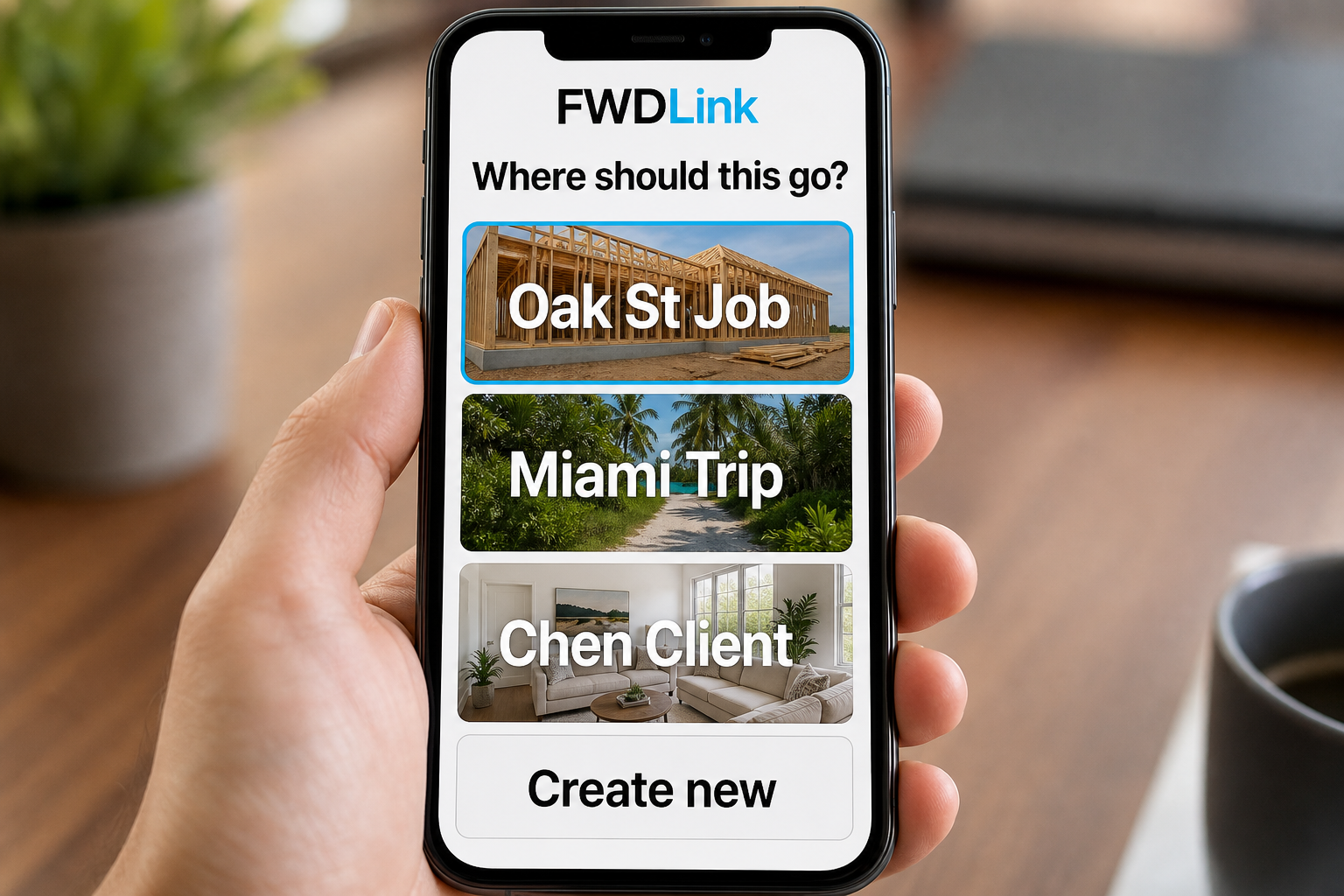
File it in the album / job / trip
You choose the home: a project, listing, trip, client, or family record. Organize in the private library. Nothing is public until you FWD — and that’s the relief.
04
FWD only what they need
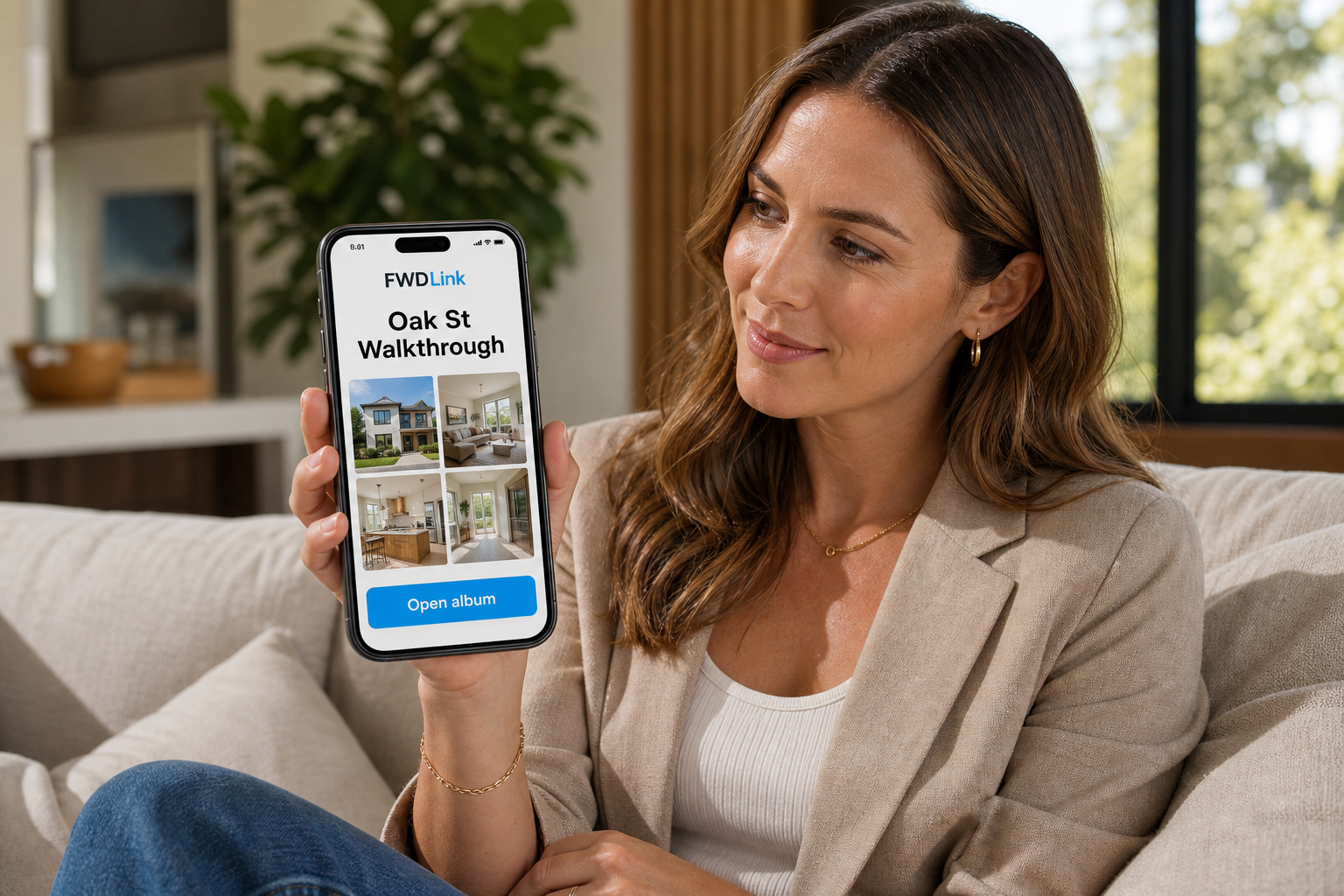
Keep raw private. FWD a project update, a listing album, a trip link, or a selected public set. Same library. Same live URL as you add more shots you’re proud of.
Every camera can feed the same library you actually send
New shots from your phone, Meta glasses, Snap, and GoPro all start in Recents. Upload them into the albums, lists, and files you already use — a home for the footage, not another folder you’ll never open.
Every camera, one library
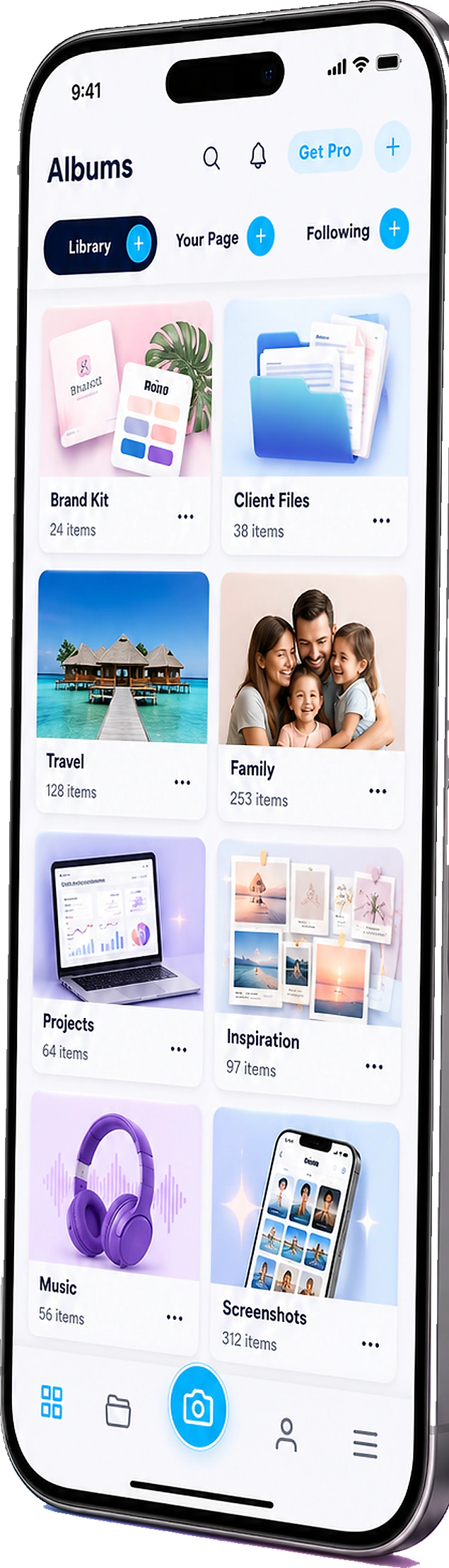
Glasses, Snap, GoPro, and your phone all file into the same albums. One place for the work, the trip, the day.
You pick the album
Open the job, listing, trip, or client record — then add the photos. You give them a home.
Then a real send
FWD a live link, feature keepers on your page, or attach the walkthrough to an invoice. That’s the set they asked for.
Your camera can change. Your album shouldn’t.
New frames, new Spectacles, a new Hero, a new phone — the dump is still a dump unless each shot has a home. FWDLink is that home: capture, upload into an album, organize, then FWD a link when someone needs the set. Same library. Same pride in what you send.

The same library you already use to get paid
Glasses shots are not a side product. They land in the workspace you use for private albums, lists, files, clients, and live FWD links on your page — the same place the invoice lives.
Library + albums
Private by default. Feature or FWD only the set someone needs — the one you’re glad they can reopen.
Lists + files
Punch lists, shot lists, and PDFs ride with the album — or FWD on their own.
CRM + get paid
Attach the same walkthrough shots to a project update, estimate, or invoice. The footage already did the work.
Ways to use it
Same glasses. A real send each time.
Hands-free capture is the easy part. Sending the right set — the one you’re proud of, not the whole Recents pile — is the relief.
Jobsite
Walkthrough out of the lunch pile
Hands-free through roof and framing. Upload into the job record. FWD a project update — or attach the same shots when you invoice. That’s the walkthrough they asked for.
Listings
A listing pack buyers can reopen
Walk the property once. Upload into a listing album. FWD the packet — add staging later and they reopen the same link. The house deserved that.
Clients
They asked for the photos. Send a link.
Stop hunting Recents when a client texts. FWD the album you already filed — not a 40-photo thread. Relief is knowing they can actually open it.
Family
The group chat is not the birthday
Upload the day into a family album. FWD one link to grandparents. The rest of Recents stays home. They get the day they were hoping for.
Travel
Trail shots, one trip link
Glasses on the trail, phone at dinner. Upload into a trip album. Family gets a live URL they can linger on — not a firehose.
Creators
Raw in the library. Selected public.
Upload the dump. Sort later. FWD only what should leave the vault — or feature keepers on your page. The rest stays yours.
Frequently asked questions
- How do I get photos from my glasses into FWDLink?
- Capture on the glasses, get the media onto your phone, then open FWDLink and upload into an album or record — a job, listing, trip, or client. That’s the whole path. You choose the home.
- Does FWDLink appear on my phone’s share sheet?
- Not as a drop target for incoming photos. You upload into an album inside FWDLink. After that, you can FWD the album link with the share sheet you already use.
- Does this work with Ray-Ban Meta / Meta AI glasses?
- Yes. Capture on the glasses, get the media on your phone, upload into a FWDLink album. FWDLink is the library and the link you send — not a replacement for Meta’s capture app.
- What about Snap Memories, Spectacles, GoPro, and the phone camera?
- Same library. If it’s on the camera roll, you can upload it into an album like anything else — one home for every camera you actually use.
- Are glasses photos public?
- No. Content stays private until you FWD a link, feature an album on your page, or attach media to a document you send. You choose what leaves.
- How is this different from Google Photos or iCloud?
- FWDLink is the album you send: a job, a listing, a trip, a client — then a live link, a project update, or an invoice with those same shots. Recents stays Recents. You choose what leaves.
Capture anywhere. Give it a home. FWD it.
Start free. Upload the next glasses or phone shot into a job, listing, or trip album — then send a link when someone needs it. The footage already did the work. See Plans when you need more storage.
Keep exploring
- Content library
- The photos they asked for — not your entire camera roll.
- You clipped it. You flew it. Send the album — not the card dump.
- Show the listing you’re proud of — in one live link.
- The birthday grandma can actually find — in one family album.
- Send home the day you actually lived.
- Jobsite photo app
- Plans & pricing